Project Info
Inspiration
With the flood of daily emails, it's easy to lose track of important deadlines and tasks buried within. We needed a solution that could help organize and prioritize emails efficiently, saving time and reducing the risk of missing crucial deadlines. The idea was to build an intuitive email tool that fetches emails, summarizes them, and highlights the most critical information, such as deadlines, while categorizing them based on priority.
What it does
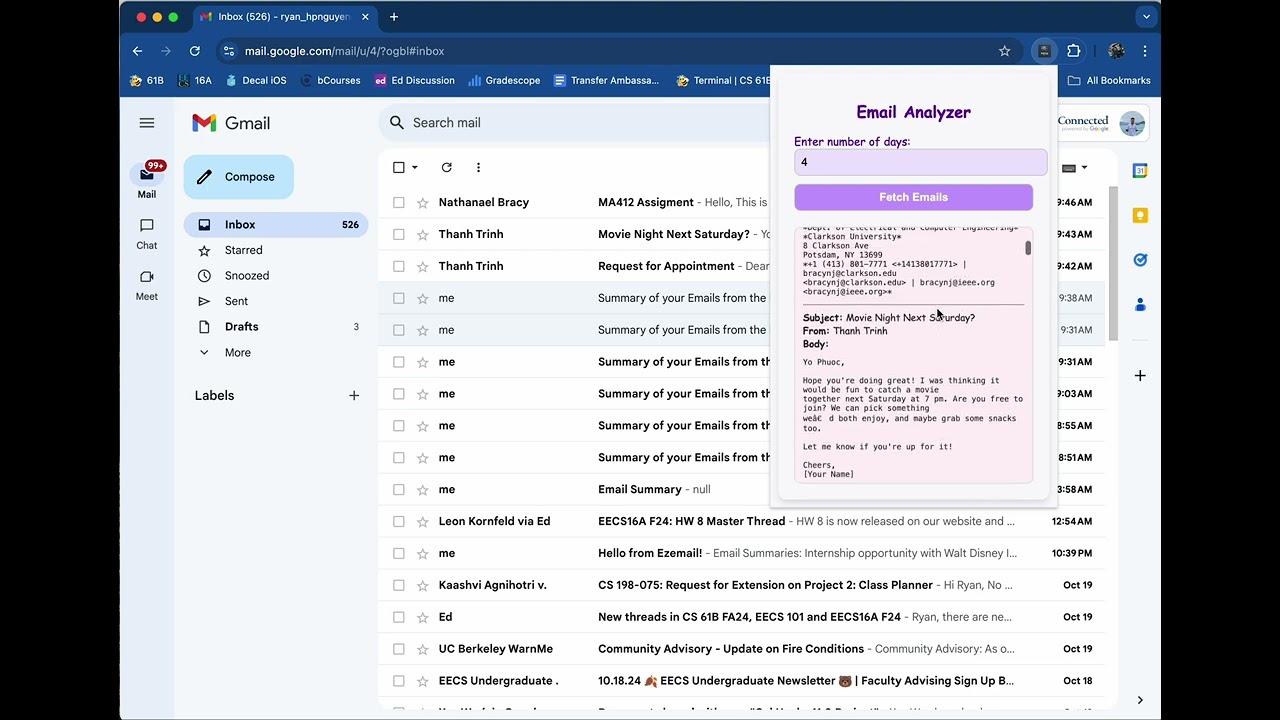
Ezemail is a Chrome extension that: Connects to your Gmail account using the Gmail API. Fetches emails over a selected time range. Uses the OpenAI API to summarize the content of the emails. Categorizes emails based on urgency, importance, and subject. Extracts and highlights deadlines or time-sensitive information. Sends an email to the user with a summary of all emails within the selected period, including deadlines and categorized insights.
How we built it
Frontend: We built the Chrome extension UI using HTML, CSS, and JavaScript. We focused on creating a clean and easy-to-navigate interface for reading email summaries and deadlines. Backend: The core logic integrates Gmail's API to retrieve emails and the OpenAI API to process and summarize the email content. After the summarization process is completed, the summary is emailed back to the user with organized insights. Email Categorization: By analyzing the email content, we used the OpenAI API to determine the importance and urgency, automatically grouping emails into categories like "High Priority," "Reminders," "Tasks," etc. Deadline Extraction: By scanning the email text, the tool pulls out dates and times and organizes them into a visual calendar.
Challenges we ran into
Authentication for Gmail and OpenAI APIs: The procedure involved many settings on the Google Cloud Platform, the Chrome extension, and our code. We visited some online resources but they did not work. This was quite challenging for us as we have never done that. It required deep understanding of the interaction between the user and the extension. API Rate Limits: We encountered challenges with the Gmail and OpenAI API rate limits, which required us to batch requests and handle throttling. Parsing complex emails: Some emails contain attachments, rich formatting, or embedded media, making it difficult to summarize the key points accurately.
Accomplishments we're proud of
Successfully integrating two powerful APIs (Gmail and OpenAI) to create a seamless email management solution. Creating a user-friendly extension that simplifies email workflows and makes important information (like deadlines) easily accessible. Implementing deadline extraction and reminder features, helping users stay on top of important tasks and dates. Automating the process to send users email summaries, eliminating the need to check emails frequently.
What we learned
Deepened our understanding of API integrations and handling their limitations. Gained insights into how AI-driven summarization can vastly improve email management. Learned the importance of UX design in productivity tools, making sure the tool is intuitive for users.
What's next
Smart Notifications: Implement push notifications for approaching deadlines or high-priority emails. Advanced Email Filtering: Improve categorization by learning from the user's interaction with emails (e.g., marking something as high/low priority). Attachment Summarization: Extend the summarization feature to attachments like PDFs and documents. Multiple Email Accounts: Allow users to connect and manage multiple Gmail accounts from within the extension.
Ezemail is a Google Chrome extension created during Cal Hacks 11.0 that digests and summarizes recent Gmail emails based on a user-specified time range. It helps users quickly grasp the key points from their latest emails by leveraging the Gmail and OpenAi API for efficient summarization.
Prerequisites
1. Clone this repository
Clone this repository to your local environment using the following command:
git clone <repository-url>
2. Manually Install the Extension
- Open Google Chrome and navigate to
chrome://extensions/. - Enable Developer Mode (toggle switch in the top right corner).
- Click Load unpacked and select the folder where you cloned the repository.
3. Set Up Gmail API in Google Cloud Console
- Go to the Google Cloud Console.
- Create a new project.
- Navigate to API & Services > Library and enable Gmail API.
- Go to Credentials and create an OAuth client ID.
- Set the OAuth item ID to the ID of this extension (you can find it in the Chrome Extensions page).
- On the OAuth consent screen, include the scope
https://www.googleapis.com/auth/gmail.readonly. - Once completed, you will get a
Client ID. Use it for the"client_id"inmanifest.json.
4. Try the Extension
Open the extension in Google Chrome and start using it to summarize your Gmail emails.
Analysis
View
Metric
- 17
- 5
- 2
- 1


Figures cover GitHub contributors during the hackathon window. A co-authored commit counts in full for each author, so per-member totals add up to more than the whole-team figures.
Technology
- HTMLIn code
- JavaScriptIn code
- PythonIn code
- OpenAIClaimed
3 of 4 appear in the indexed code. 1 claimed on Devpost could not be matched to code, which may simply mean the tool leaves no trace in the repository.
AI coding agents
No AI coding agent signals were found in this repository.
Detected from committed agent config files and commit authorship. Absence of a signal is not proof an agent was unused.
Codebase size
Source size
16 KB
Source files
17
Counts recognized source files only; vendored directories, binaries and lockfiles are excluded, so this is smaller than the repository on disk.
Repository
ryanhongnguyen/ezemail
26 files · 51 KB · @ 56b051a
Structure
Interface
2 files · 8%Screens, components and styles rendered to the user.
Application logic
16 files · 62%Domain rules, services and shared utilities.
Supporting
Layers are inferred from where files sit in the tree, not from reading the code. A project that names its directories unconventionally will read oddly here — open the file browser to check anything the diagram implies.
Languages
- JavaScript47%
- Python30%
- HTML14%
- Markdown10%
Share of indexed source by file size. Binary and vendored files are excluded.
Dependencies
requirements.txt
pypi · 1- pip
Declared in the repository’s manifests at the indexed commit. A declared package is not proof it is used, and runtime dependencies are listed first.
Feature verification
Chrome extension fetches Gmail emails over a selected time rangeVerified
Connects to your Gmail account using the Gmail API and fetches emails over a selected time range
Claimed on readmehigh confidencebackground.js:86— fetchEmails() builds a Gmail API query 'newer_than:{days}d' and fetches message list, then fetches each message's content via chrome.identity OAuth tokenpopup.js:19— popup sends { action: 'fetchEmails', days } to background.js and renders resultsmanifest.json:7— OAuth2 config with gmail.readonly and gmail.send scopes, identity permission
OpenAI-based email summarizationVerified
Uses the OpenAI API to summarize the content of the emails
Claimed on readmehigh confidencepopup.js:56— summarizeEmails() posts fetched emails to OpenAI chat completions API with a summarization prompt and returns the summary text
Send summary email back to the userVerified
Sends an email to the user with a summary of all emails within the selected period
Claimed on readmehigh confidencepopup.js:90— sendEmail() base64-encodes a MIME message and POSTs it to the Gmail send API using the OAuth token, called after summarizationgmail_api/email_sender.py:10— Python-side send_email() using simplegmail library, but this path is not wired into app.py/main.py's flow
Chrome extension UI for reading summaries and deadlines (HTML/CSS/JS popup)Code-supported
Built the Chrome extension UI using HTML, CSS, and JavaScript with a clean interface for reading email summaries and deadlines
Claimed on Devpostmedium confidencepopup.html:1— Popup UI with days input, fetch button, and results div; displays raw email subject/from/body, not a dedicated deadlines viewpopup.js:1— displayEmails() renders fetched emails into the popup DOM
Python backend Gmail fetch/digest pipeline (app.py, main.py)Code-supported
Backend integrates Gmail's API to retrieve emails and the OpenAI API to process and summarize
Claimed on Devpostmedium confidencemain.py:1— Flask app with /fetch_emails route using gmail_api.gmail_service to fetch emails by time range and print them; no summarization call in this fileapp.py:10— Separate Flask app exposing /generate-digest that calls OpenAI ChatCompletion on posted email data; not connected to main.py's fetch route or the Chrome extension
Batching/throttling to handle Gmail and OpenAI API rate limitsClaimed only
Encountered API rate limits, required batching requests and handling throttling
Claimed on Devpostmedium confidenceCategorization of emails by urgency/importance/subject into labeled groupsClaimed only
Categorizes emails based on urgency, importance, and subject (e.g. High Priority, Reminders, Tasks)
Claimed on Devposthigh confidenceDeadline extraction and reminder featuresClaimed only
Implementing deadline extraction and reminder features, helping users stay on top of important tasks and dates
Claimed on Devpostmedium confidenceDeadline extraction into a visual calendarClaimed only
Scans email text to pull out dates/times and organizes them into a visual calendar
Claimed on Devposthigh confidenceMultiple email accounts supportClaimed only
Allow users to connect and manage multiple Gmail accounts from within the extension
Claimed on Devposthigh confidence
An AI agent derived these features from the project’s Devpost page and readme, then searched the code for each one. Verified features are backed by cited code; claimed-only features had no supporting code, which is not by itself proof a feature is missing.
Export this project's context (description, README, evidence, key source files) to chat with an AI agent elsewhere.